You ever open a weather app for a picnic and see a sun half covered by clouds, then rain drops with lightning nearby? It feels like the forecast is talking in code. And if you misread it, you might show up without a jacket (or miss the safer window).
Weather symbols and icons are meant to be fast and simple. In most apps, the icon language lines up with common standards used by groups like NOAA and the World Meteorological Organization (WMO), plus each app’s own styling.
In the sections below, you’ll learn what the main icons mean, starting with sky cover, then precipitation, then storms, wind, and visibility. Along the way, you’ll pick up a few “watch out for this” tips so you can plan outdoors with more confidence.
Sun and Clouds: What Sky Cover Icons Tell You About the Day
Sky icons are usually the easiest to spot, because they match what you might see outside. Still, apps sometimes use different shades, and that can change the feeling of the forecast.
Most weather icons are shorthand for cloud amount and how much sun you’ll likely get. For example, sunny typically means clear skies with little to no cloud cover. Partly cloudy means you’ll get breaks in the clouds. Overcast means the sun likely won’t show much, if at all.
If you’ve ever wondered why “cloudy” can look different from one app to another, you’re not alone. NOAA and other forecasters use consistent weather symbol ideas in their materials, even when styles vary by product. You can see how official terms and symbols get described in NOAA’s weather terminology resources here: Terminology and Weather Symbols.
Meanwhile, WMO maintains an icon reference for how weather conditions get represented. That’s useful when you want the “core meaning” behind the picture, not just the color. See Weather Icons on WMO.
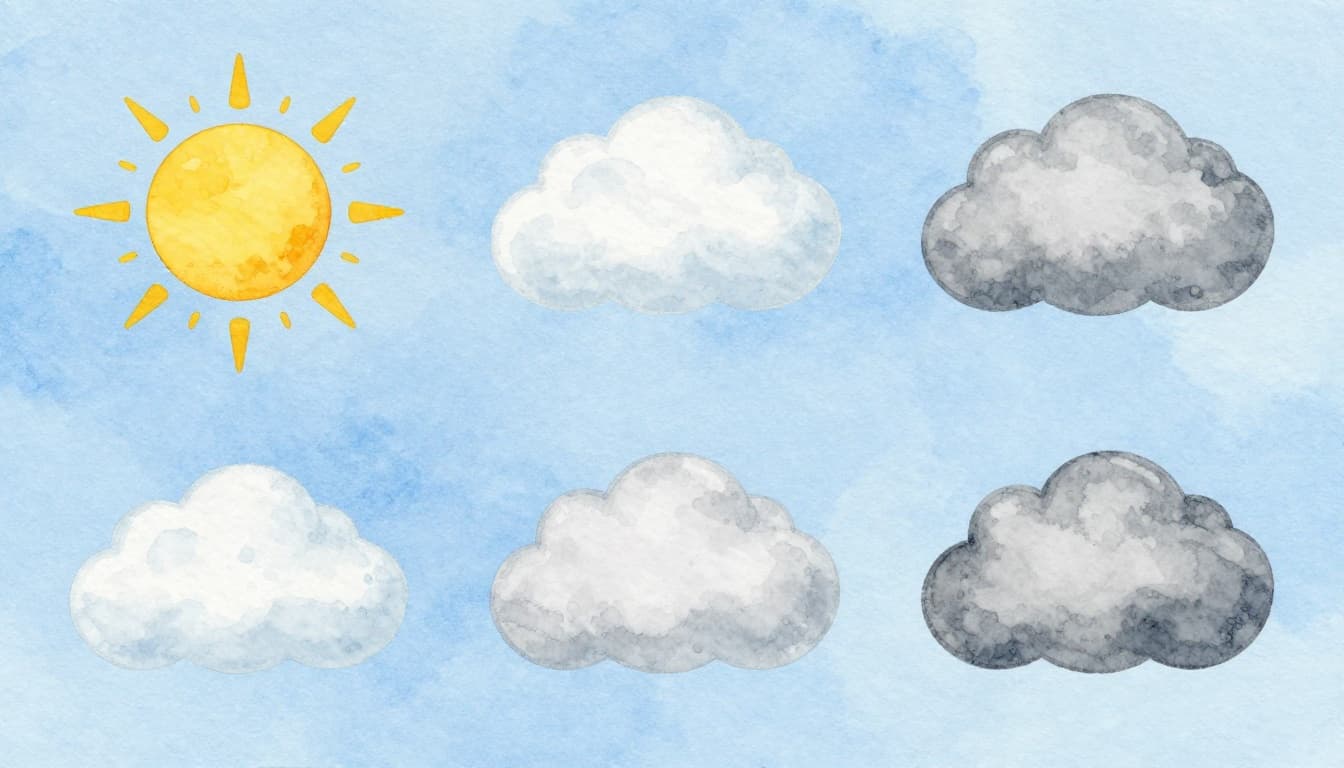
Here’s the mental model that helps most people: think of sky icons as a window. Sunny is an open window. Partly cloudy is a window with curtains pulled aside. Overcast is a closed window.
Also, icons can show day and night versions. An app might reuse the same basic shape, then swap the sun for the moon at night.
Sunny and Clear Skies: Perfect Weather Icon
A sunny icon usually shows a bright sun (day) or a moon with stars (night). That picture means clear skies, with very little cloud cover.
In practical terms, it usually means:
- More direct sunlight
- Fewer interruptions in the sky
- Better chances for outdoor plans (until other factors show up)
Apps also use sunny icons when they expect temperatures to climb. If your forecast says sunny and warm, the icon is often telling you to expect clear skies that let heat build.
One catch: “sunny” doesn’t always mean “no weather at all.” Some forecasts show sunny plus another symbol later, like rain or wind. So always scan for extra icons too.
Partly Cloudy or Partly Sunny: Half-and-Half Days
Partly cloudy and partly sunny icons look like a sun partly hidden behind a cloud. In most apps, that suggests scattered clouds. You might see sun for a while, then clouds pass over, then sun returns.
People often read “partly sunny” as “more sun than partly cloudy.” In many apps, that’s the vibe the wording implies, even if the icon style is similar.
Either way, you should plan like this:
- Outdoor time is likely okay in short blocks
- The forecast can still flip to rain showers if a precipitation icon appears
- Shade and cooling can happen when clouds move in
If you’re trying to choose between two times of day, icons help you compare. For example, “partly sunny” in the afternoon often beats “mostly cloudy” when you want light for photos or a comfy walk.
Cloudy and Overcast: Gray Skies Coming
A cloudy icon typically shows thicker cloud shapes. Overcast is the “most gray” version, often with a solid cloud layer.
When you see overcast, it usually means:
- Little or no sun showing
- Cooler feel than a sunny day
- Less likely “warm-up breaks” during the day
Some apps show multiple gray levels. That’s often their way of expressing how thick the cloud layer is. If you’re staring at a forecast and can’t tell if it’s “cloudy” or “mostly cloudy,” look at the amount of sky you can see behind the clouds. More sky shows up when the forecast expects more sun breaks.
Just remember, cloud icons mainly tell you about sky cover. If the app also shows rain, the rain symbol matters more for safety.
Rain, Snow, and Ice: Precipitation Symbols Decoded
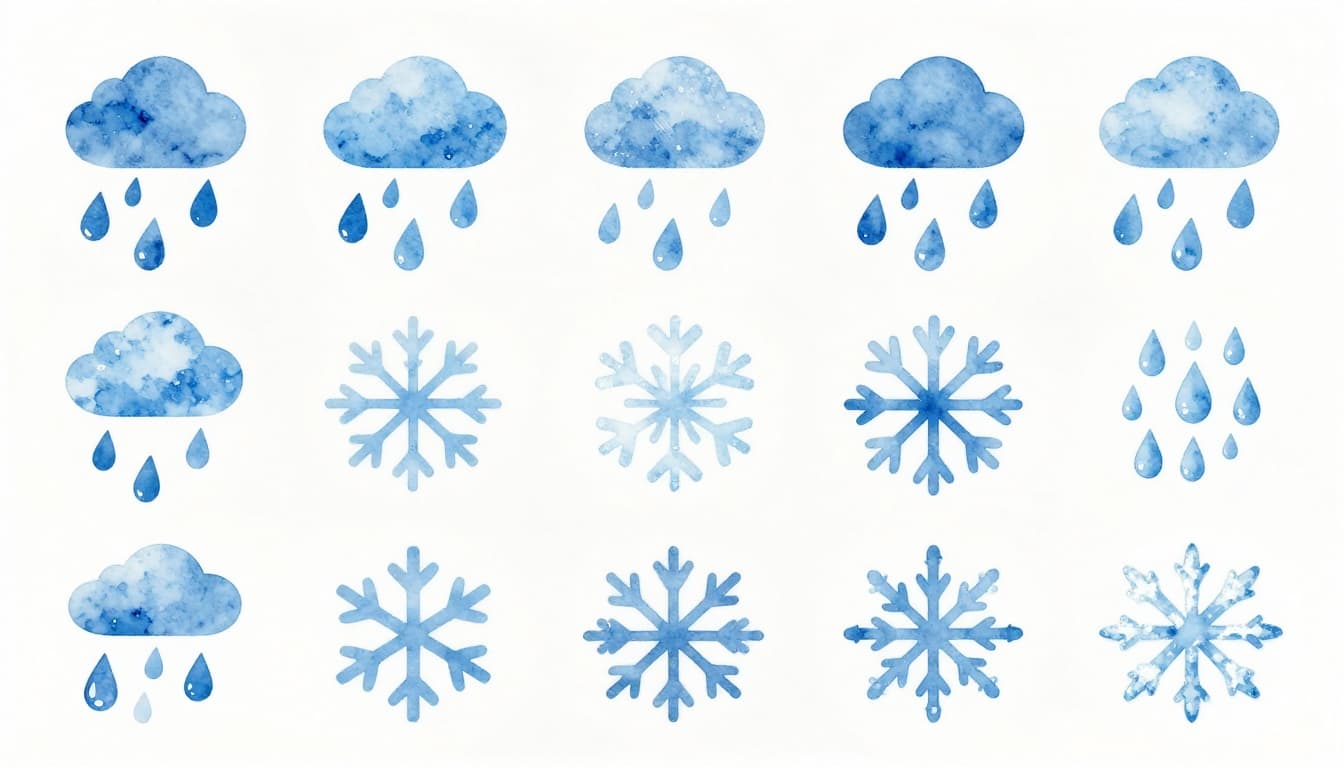
Precipitation icons usually sit under the clouds, because precipitation comes from clouds. So if you see rain drops paired with a cloud icon, the app is basically saying, “That gray sky matters.”
Most apps also vary the icon style to hint at intensity. Heavier rain often means more drops or thicker lines. Light drizzle looks like tiny specks. Snow shows up as white flakes.
If you want official grounding for terms and how apps explain them, AccuWeather has a plain-language guide for weather terms here: What do these weather terms mean?. It won’t replace local forecasts, but it helps when icons and names get confusing.
Here’s a quick translation cheat sheet for common precipitation icons:
| Icon you see | What it usually means | What it feels like |
|---|---|---|
| Slanted blue drops | Rain | Wet ground, steady splash |
| Light specks or mist dots | Drizzle | Damp, less obvious at first |
| White flakes | Snow | Winter air, buildup possible |
| Mixed flakes and drops | Wintry mix | Hard to predict surface temps |
| Pellets (small round bits) | Sleet | Icy roads can form fast |
| Drops with an ice outline | Freezing rain | Clear ice risk, extra dangerous |
The big safety tip: precipitation icons often stack with other risks. If you see rain plus lightning, or snow plus strong wind, the icon meaning is about more than “just weather.”
Also, “heavy” doesn’t always mean a long storm. It can mean intense bursts. Your plan should match the forecast timing, not just the icon.
From Showers to Heavy Rain: Drop Sizes Matter
Rain icons can look similar at first. The difference is usually in how many drops appear and how they’re drawn.
- Showers often look lighter, with fewer drops.
- Steady rain often looks like consistent lines or denser drops.
- Drizzle usually looks like tiny specks, almost like light mist.
So if you see a drizzle icon, grab a light layer, but you might still keep the outing. If you see heavy rain icon styling, treat it like the forecast expects wet conditions to last.
A good habit: when precipitation icons appear, check what else shows up nearby. If the forecast also includes a wind symbol, umbrellas can fail in gusty rain. If thunder appears, don’t assume “it’s just a shower.”
Snow, Flurries, and Winter Mixes
Snow icons usually show white flakes. Some apps use different snow “grades.”
Flurries often mean lighter, shorter snowfall. Snow that’s drawn with larger flake patterns or denser flakes often suggests heavier accumulation risk.
Winter mix icons can be trickier because the app may show both snowflakes and rain drops. That often signals that temperatures may sit near freezing. In those conditions, surfaces can freeze, melt, and refreeze in quick cycles.
AccuWeather’s icon list includes a dedicated snow icon (icon number 22) in their weather icon documentation. You can see their standard set here: AccuWeather weather icons. That helps you connect the “picture” to a known condition set.
Sleet, Freezing Rain, and Hail Dangers
This is where icon-reading can prevent accidents.
- Sleet usually shows as pellet-like pieces. The main concern is that it can make roads slick.
- Freezing rain is often shown with ice-related styling. The danger is clear ice on roads and branches.
- Hail may show as small ball shapes. When apps include hail icons, conditions are often severe.
If you live where winter storms switch quickly, remember this: sleet and freezing rain can create ice even when the air temperature seems “not that cold.” Icons help, but you still need to follow local alerts and road guidance.
Storms, Wind, Fog: Severe and Tricky Conditions Icons
Once you reach storms and visibility icons, the forecast becomes more about risk than comfort.
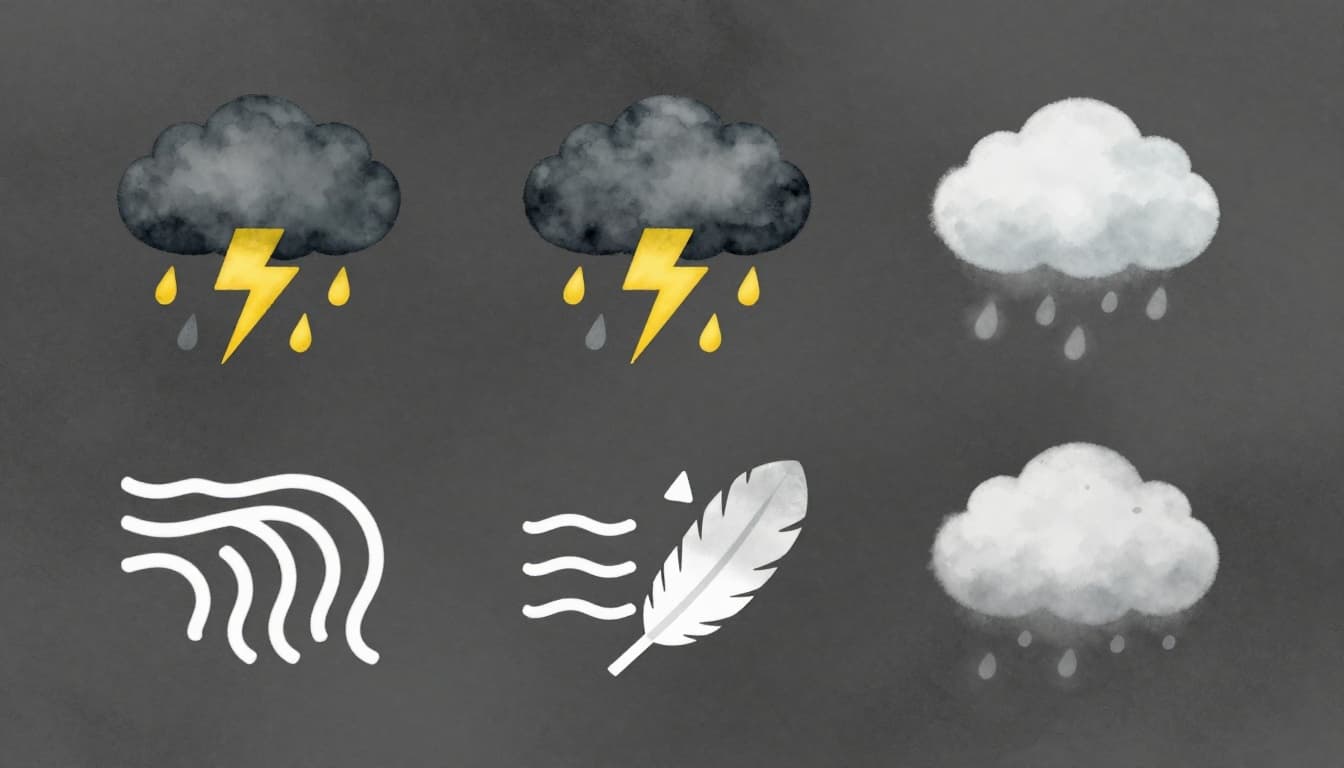
Storm symbols often combine clouds plus an extra mark. Thunderstorms typically include a lightning bolt (sometimes along with rain). Wind icons might show arrows, feathers, or wavy lines. Fog icons usually show a cloud with dots, while haze looks like lighter gray smudging.
Also, these symbols can appear together. For example, you might see mostly cloudy plus thunderstorms. That doesn’t mean “no clouds.” It means clouds plus the storm risk.
For a deeper look at how forecasters represent weather plot symbols, NOAA’s JetStream has examples of surface weather plot symbols here: Surface weather plot symbols. It’s more technical than most apps, but it helps explain why some icons look the way they do.
Thunder and Lightning: Storm Warnings in One Glance
A thunderstorm icon usually includes a storm cloud plus lightning. Sometimes the app draws it next to rain drops too.
The meaning is simple: the forecast expects thunderstorms with lightning. That can bring heavy rain, sudden downpours, and dangerous lightning strikes.
So if your plan includes being outside, act on the thunder icon quickly:
- Avoid open areas
- Stay away from tall trees and metal objects
- Look for a nearby safe building or car
Partly sunny plus thunderstorms can happen too. That usually means “clouds with breaks,” but also “storm risk later.” Don’t let the sun version fool you.
Wind Gusts: Lines and Arrows Show Speed
Wind icons often show arrows, or they use line patterns. If the icon includes “feather” style marks, it may hint at stronger winds.
In most app icon sets, wind symbols tell you two things:
- Wind is likely (not just possible).
- Gusts may be strong enough to affect comfort, umbrellas, and driving.
If you see wind plus rain, hold onto the umbrella. If you see wind plus snow, expect reduced visibility and blowing snow effects.
Also, the wind direction matters. Some icons include arrows. If you’re planning travel, wind direction can affect driving comfort and blowing debris.
Fog and Haze: When You Cannot See Far
Fog and haze icons both relate to visibility, but they don’t mean the same thing.
- Fog usually looks like a cloud with dense dots, and it suggests much lower visibility.
- Haze often looks lighter, more like thin gray mist.
Visibility changes can be sudden. Even if the forecast says “light rain,” fog can still make driving feel stressful. So if you see fog icons, slow down, use headlights correctly, and increase following distance.
If you notice your commute feels “off” even when skies look calm, fog can be the reason. The icon is the warning label, in picture form.
Hot, Cold, and Day-Night Twists
Some apps add extra symbols to show temperature feel. For example, you might see hot icons with red waves near the sun. Cold symbols can show snow or blue chill markers.
Then, there’s the day-night switch. The sun icon may turn into a moon at night. That swap matters because it keeps the same sky meaning while adjusting for time of day.
AccuWeather and other apps also use color changes to communicate whether conditions are cooling or warming. That’s why “night clear” can look different from “day clear,” even though both mean low cloud cover.
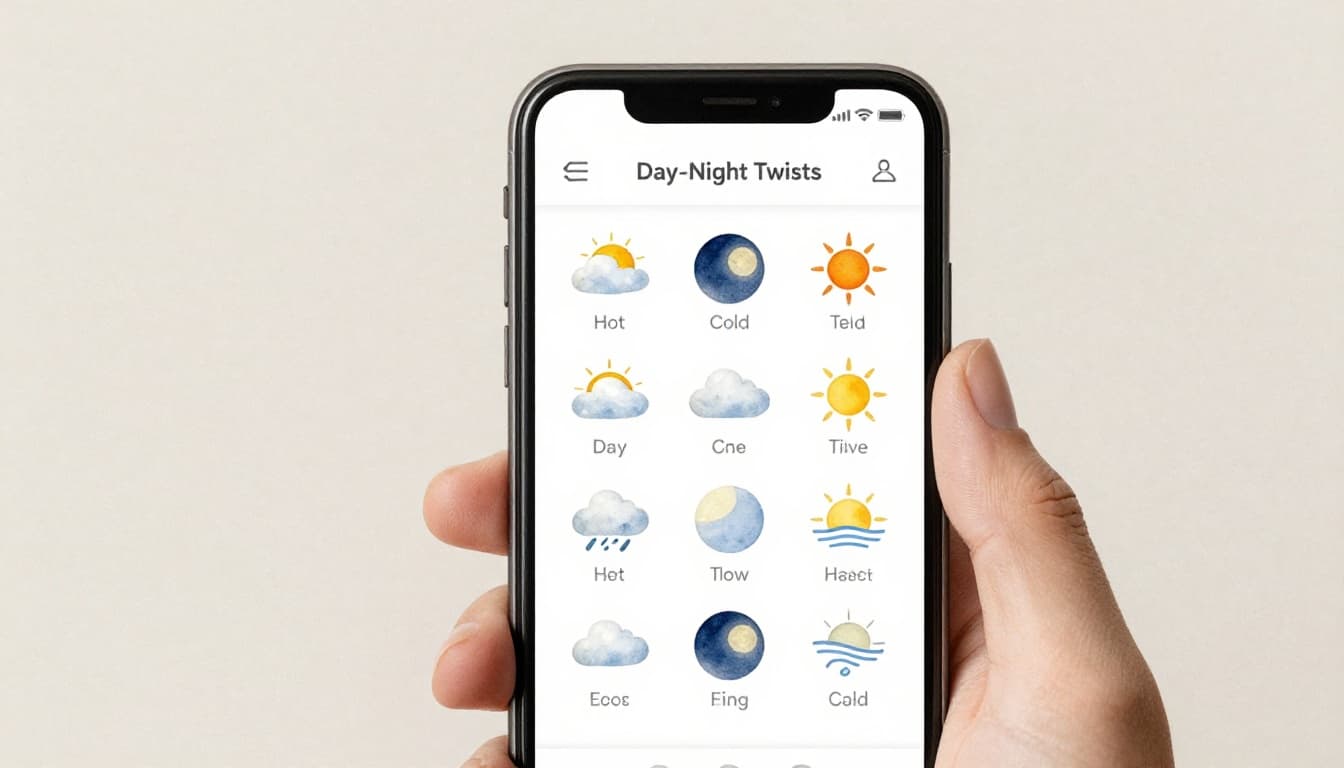
The key takeaway here: when the icon changes from sun to moon, it usually means the forecast is talking about the same sky idea, just for night hours.
Conclusion: Read the Icons, Then Act
Once you know the basics, weather icons stop feeling like a puzzle. Sun and cloud icons tell you how open the “sky window” is. Precipitation icons tell you what’s falling, and intensity hints at how wet or icy conditions might get. Storm, wind, and fog icons signal risk, especially for safety and travel.
Next time you check the forecast for an outing, scan in this order: sky cover first, then precipitation, then storms and visibility. If anything looks severe, trust the extra symbols, and adjust your plan fast.
Want a simple practice tip? Screenshot a forecast that confused you, then compare the icon meanings from this guide. Over a few days, your brain will learn the visual shortcuts, and you’ll plan with less guesswork.